@Antonio Jesús Cabeza Castaño
Hello.
Could you please tell us the reason why you want to do the update?
We'd like to remind that the update operation involves the potential risks.
For this reason, we suggest that you can keep the current version to use if the unit can work normally.
@Antonio Jesús Cabeza Castaño
Hello. We have sent you the latest firmware in this post:
Hello!
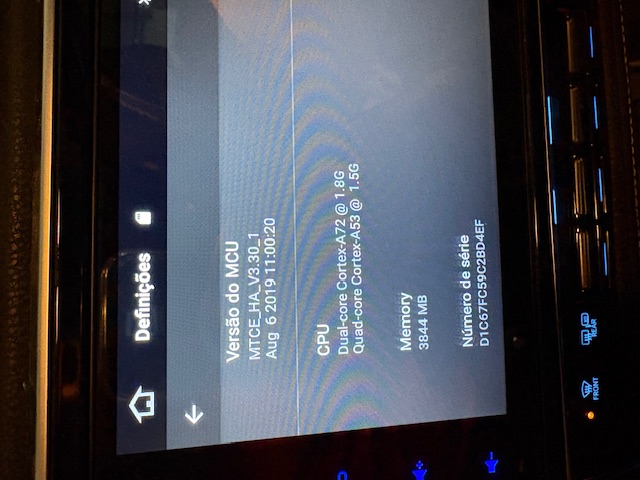
I have the following version currently installed.


Which version do I need to perform a system update?
Thanks in advance!!
This process seems exceedingly more difficult and confusing that it needs to be. You have links here for firmeware - took forever to get here. Your instructions reference an MCU file - yet there are no references or links to MCU file respository or which is required for which unit/builds. Where do I find the correct MCU for QCM6125 (android version 13) compatible/recommended for your firmeware version above? My problem from day 1 has been the phone audio. mic levels are terrible and other parties are unable to hear - volume is far too low.
@Matt Tankersley AND now the unit is completed dead. NEVER powers on! As you might imagine, i've gone from inability to have phone conversations to having NOTHING now! Absolute TERRIBLE product. Please assist promptlyl, before I rip it out and begin the process of sharing to all that they should NEVER use this product ever! Last screen that ever worked (post attempted upgrade) is attached here.
@Support Dasaita - what is your sla for responding here? Is there a better way to obtain reliable support and firmware? I'm hours away from ripping this dead object out and writing bad reviews.
@Matt Tankersley
Hello.
Sorry for any inconvenience caused.
Regarding to your issue, we suggest that you can firstly try to use a Pin/Paperclip to press and hold the RST Button for 15 seconds to enter the recovery interface to do the factory reset.
(Tap "Wipe data/factory reset" > "Factory data reset" > "Reboot the system now".)
Here enclosed the operation video for your reference:
https://www.dropbox.com/scl/fi/6mhzgijcv059wo2s9octl/G13-RST.mp4?rlkey=366exgktisqwb4ml1elqoge2u&e=1&dl=0
If no luck, please write a mail and indicate your order number.
So that we can arrange the personnel to follow up on your case better.
✉️Email: support@dasaita.com
@Support Dasaita This resolved the black screen issue. However, I still need working instructions on how to FIND correct firmware (and/or) other to address the HORRIBLE audio call quality issues. Please advise. Does the attached image help in any way?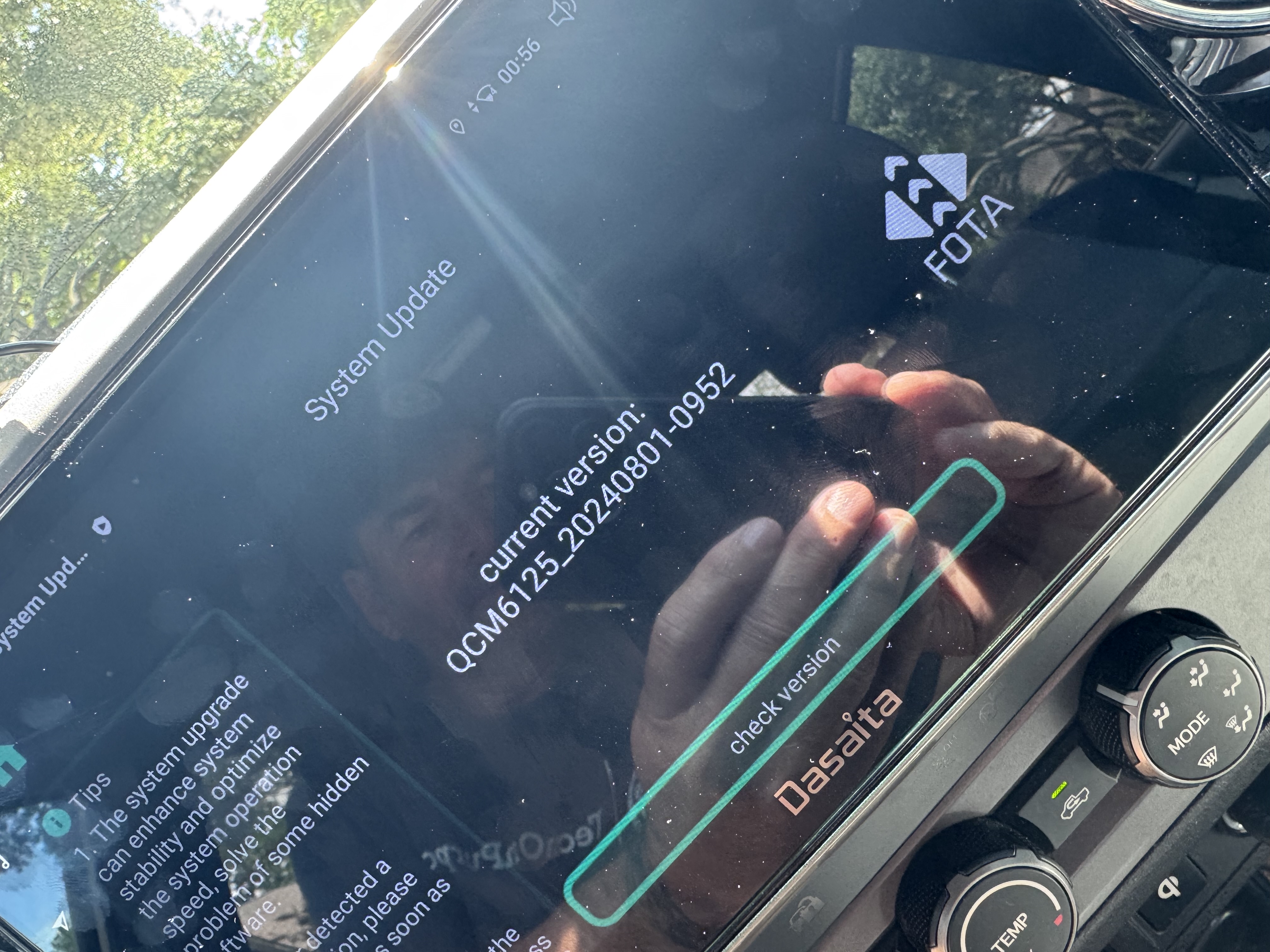
@Matt Tankersley
Hello.
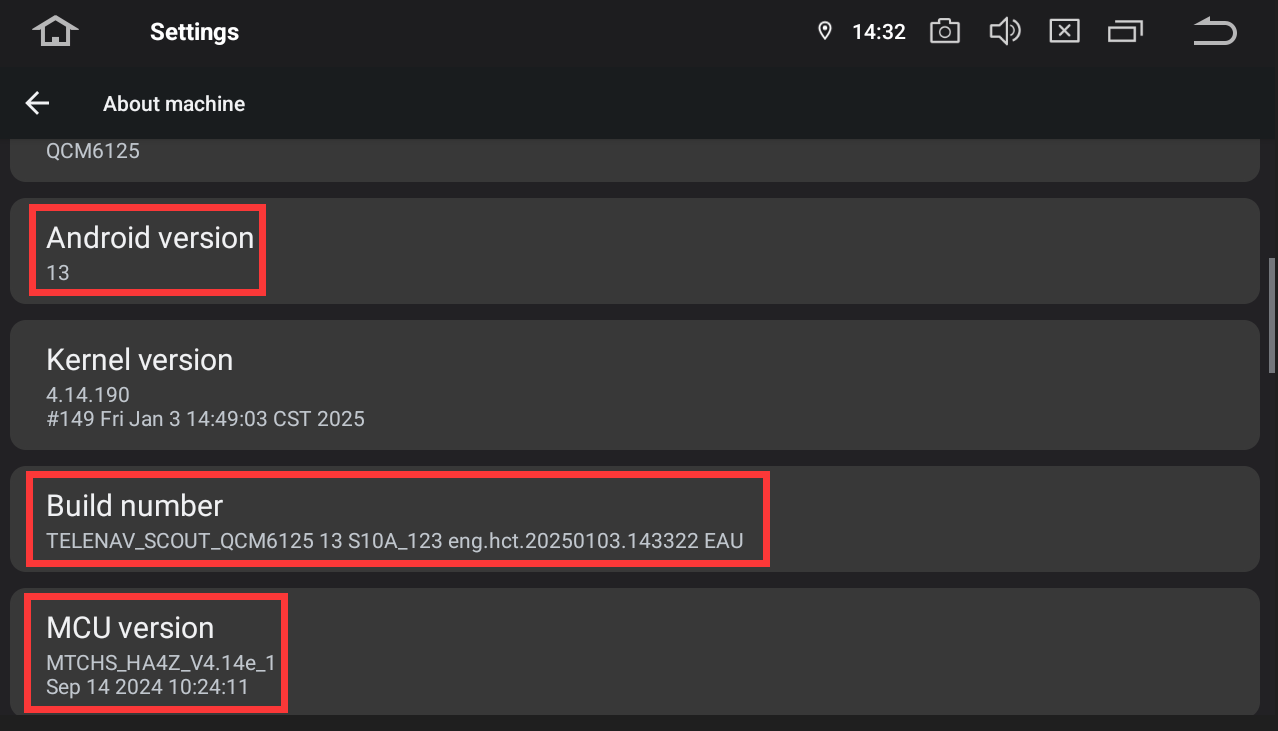
For further confirmation, please provide the following information:
1.
Order Number & Purchase Date.
2.
Picture: Settings > About Machine > Build Number; MCU version.
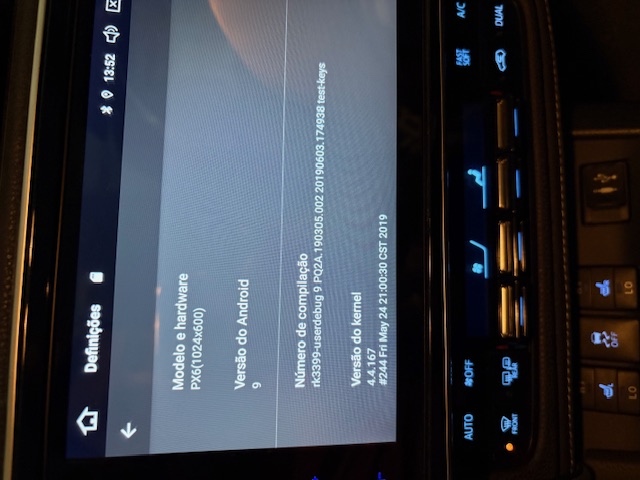
Good afternoon, I have a Daisata with Android 9.
I would like to know if there is an Android version update for this model that I have, it is for the Toyota Auris 2016 hybrid

Thank you
@Support Dasaita screenshot attached.
Purchased: 10/29/2024 (Amazon - Order # 111-9633500-2590665)
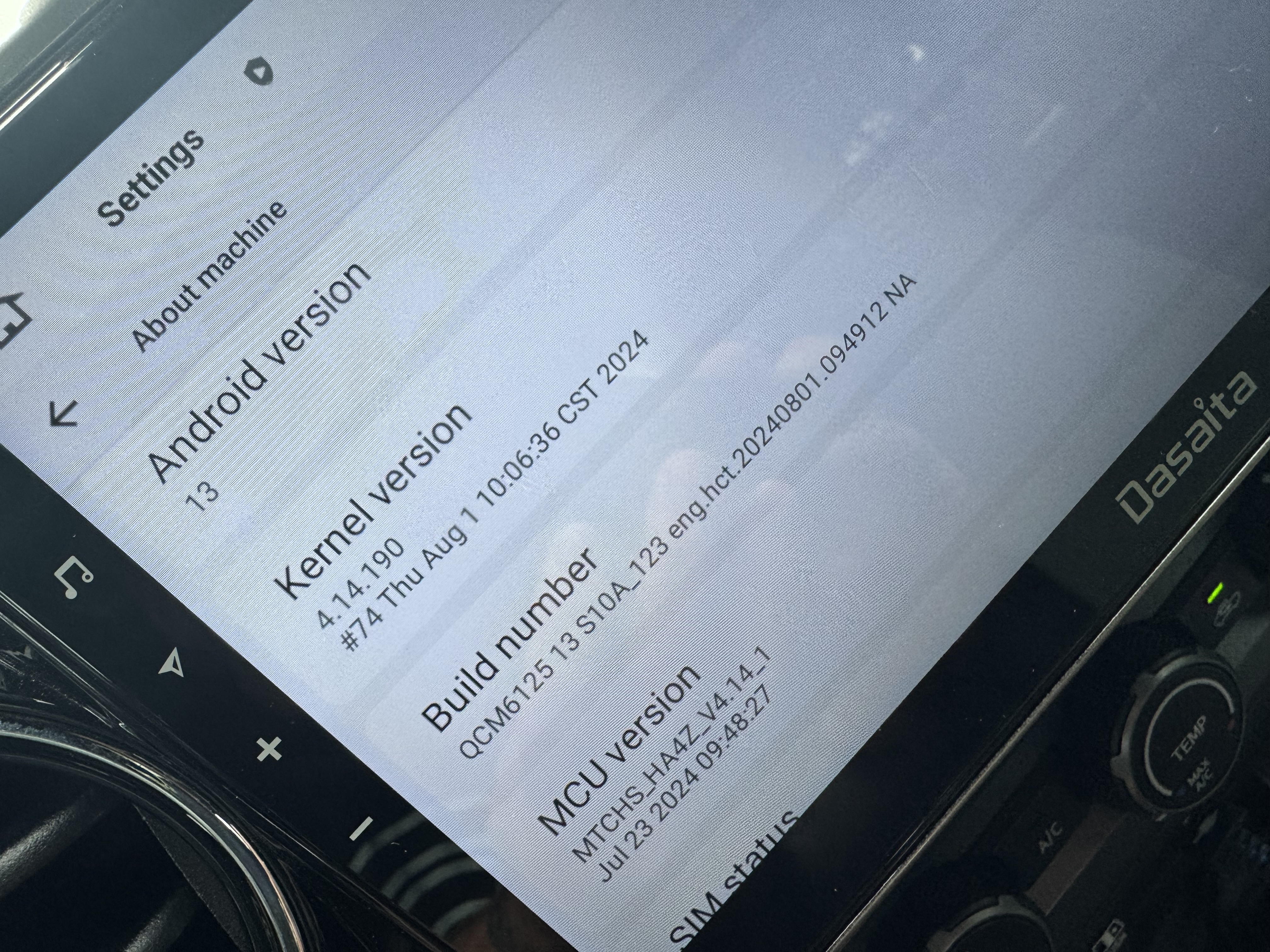
@André Bento
Good day.
Upon checking, the version that you purchased has discontinued.
We no longer maintain it thus it won't be released the new update file anymore.
Besides, we'd like to remind that the update operation involves the potential risks, especially the old machine.
For this reason, we suggest that you can keep the current version to use if the unit can work normally
@Matt Tankersley
Hello.
Thanks for your information.
Please check the update tutorial below then give it a shot.
-----------------------------------------------------------
Update File:
System Firmware-G13-202504523:
https://www.dropbox.com/scl/fi/a5h978wsreg9uuipf6bw1/update.zip?rlkey=p77ztea3f3gdhu24t0845i2mq&e=1&dl=0
Tips:
1.
Download above update file via your computer/laptop.
2.
Format USB drive to FAT32 Format.
3.
Copy the file “update.zip”&“hmcu.img” to the root directory of USB drive.
4.
Insert USB drive into the unit via USB cable;
then it will pop up automatically a window of update.
Alternatively, please manually go "Settings > System > System updates/MCU updates" to start the update.
***NOTE:
Please make sure that you have ticked option "Wipe data and format flash!".
Reference Operation Video:
https://www.dropbox.com/scl/fi/7tgvc28sn77ux6g6fmosm/MCU.mp4?rlkey=7p5940e12kb88a42zue6qntft&e=1&dl=0
-----------------------------------------------------------
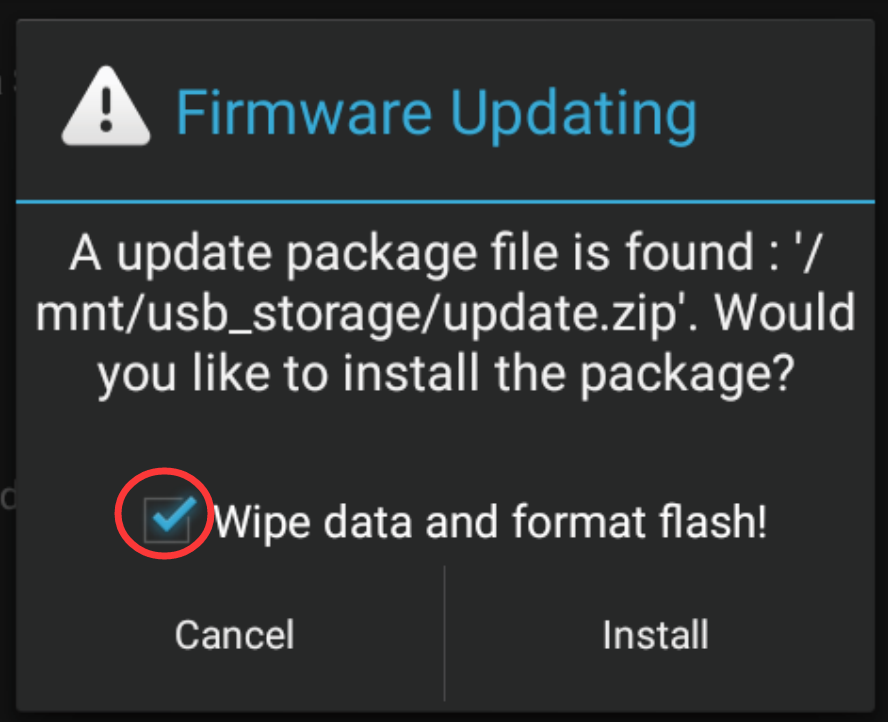
@Support Dasaita FAIL - see img - please advise.
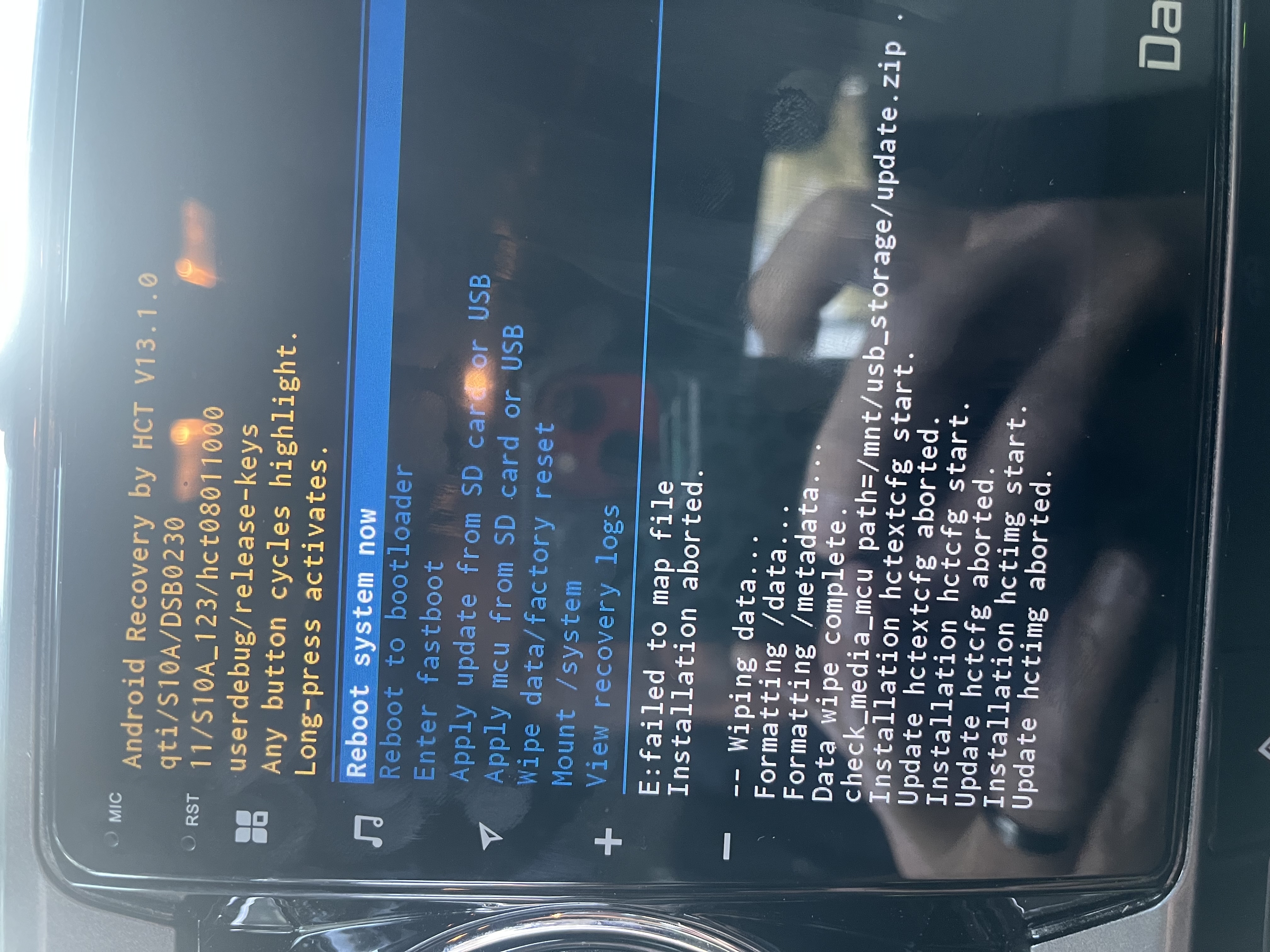
@Matt Tankersley
Hello.
Please try to re-download the file, and copy it to other USB drive to test how it goes.
Please make sure that the file is “update.zip”(it doesn't need to unzip or rename),
and you have ticked option "Wipe data/factory reset" before update.
Can you fix the Max 10 px6 firmware to be able to not be detected as rooted? I'm unable to use a few apps, specifically the current Apple Music says I can't use it due to detecting a root.


@Javier VF
Please update the Firmware & MCU to the latest version via the link below,here are some tips to help you get it done:
①G13 Version:Make Sure your unit is QCM6125 Andorid 13
zst27_sc138_13_(20250311)
https://www.dropbox.com/scl/fi/70whgvgq7f6fkkd42ncie/update.zip?rlkey=a036rb694v0nehdqh11omokvw&dl=0
②4.15f:
https://www.dropbox.com/scl/fi/zjk57mppsli9nnmc9vubs/hmcu.img?rlkey=buxs8jrlxzn00j4488ze6sc0d&dl=0
1.Download the documents ①&② through the link on your computer/laptop.
(Do not rename and Unzip the file)
2.Format the USB drive(FAT32 Format)before copying the Update.zip & hmcu.img file to it, then insert it to the USB cable,and it will pop out the firmware updating tips on the screen.
(Tick the option"Wipe data and format flash")
3.MCU updated GO:Settings>System>MCU updates.
Thank you for your time and cooperation in advance.