Firmware update / ZLink update for Dasaita PX6 Android 10 Toyota Camry 2015
-
Hello,
I am trying to determine the correct firmware update package for my specific unit to get Z-Link functional. It currently gives a internet connection error despite being connected.
My current information:
- Vehicle: 2015 Toyota Camry
- Head unit: Dasaita PX6
- Android version: Android 10
- CPU/platform: RK3399
- MCU version: MTCE_HA_V3.7_1
- Build number: rk3399-userdebug 10 (I can provide the full build string if needed)
The unit currently has the ZLink app installed, but I would like to update it and improve Android Auto/CarPlay compatibility if possible.
Could someone please help me identify:
- The correct firmware package for this exact PX6 Toyota unit?
- Whether there is a newer Android 10 firmware available for MTCE_HA?
- Whether ZLink should be updated separately or only through a firmware update?
I do not want to install the wrong firmware and risk losing features like the steering wheel controls, backup camera, or CAN bus functionality.
Thank you for any help!
-
@Matthew Brundage
Hello.
To further confirm, please go Settings > About Machine,
then provide the complete Build Number information.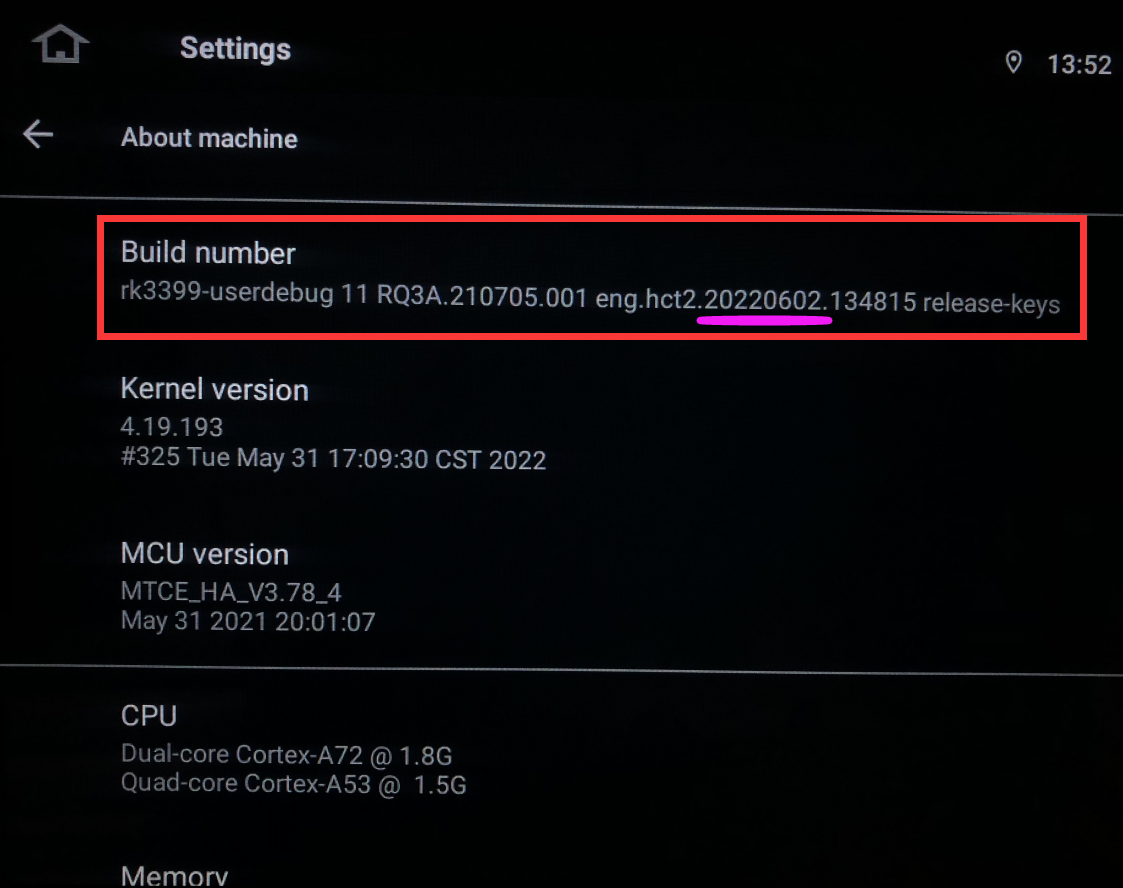
-
@Support Dasaita
The date is 20201217
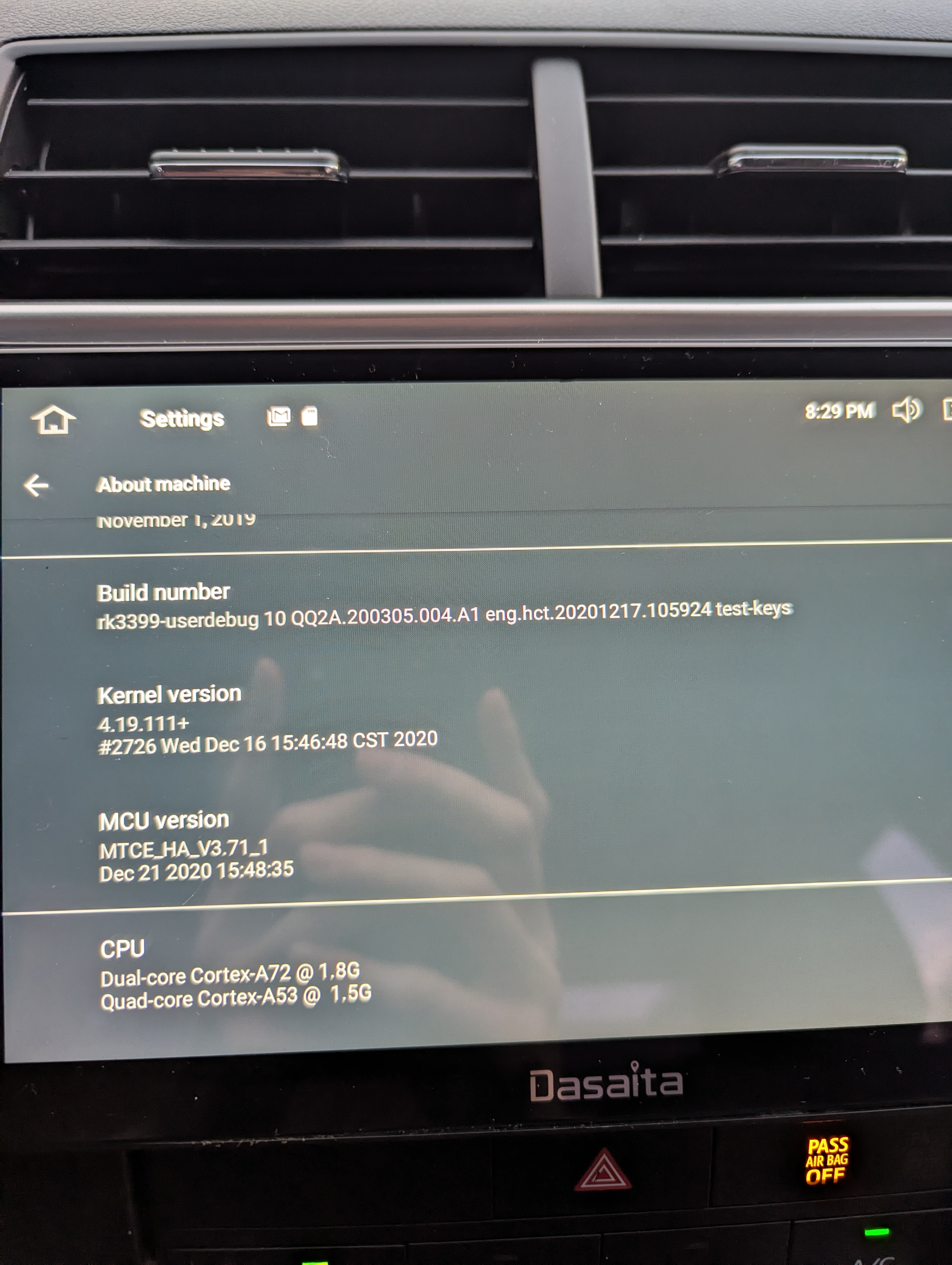
Ultimately my goal is to get Android Auto functionality. From my research it seems Z-Link is not activated or not up to date, because it asks for internet connectivity despite being connected. The Z-link app version is 4.0.14, please let me know if this needs to be updated to function properly.
-
-
-
-
-
@Matthew Brundage PhoneLink supports wired Android Auto connectivity.